
How to Install NordVPN on Any Device (2026 Step-by-Step Guide)
Learn how to install NordVPN on Windows, Mac, iPhone, Android, Fire Stick, and more — step-by-step NordVPN setup for every platform in one place.
You just subscribed to NordVPN and now you’re staring at a dashboard wondering where to start. Knowing how to install NordVPN on one device is simple enough — but what about your phone, your TV, your router, or your game console? The official help center sends you to a dozen different pages, and half of them assume you already know what you’re doing.
This guide cuts through all of that. Every platform NordVPN supports is covered here, in one place, with numbered steps you can follow right now. From a Windows .exe to a Fire Stick app to a manual router config, you’ll find exactly what you need below. If you want a deeper look at the service itself, read our full NordVPN review first.
NordVPN supports up to 10 simultaneous connections per subscription. That means you can protect your laptop, phone, tablet, and partner’s devices all on one account. The install process takes under two minutes on most platforms.
One account. Every device. Let’s get everything set up.
Before You Begin: Create Your NordVPN Account
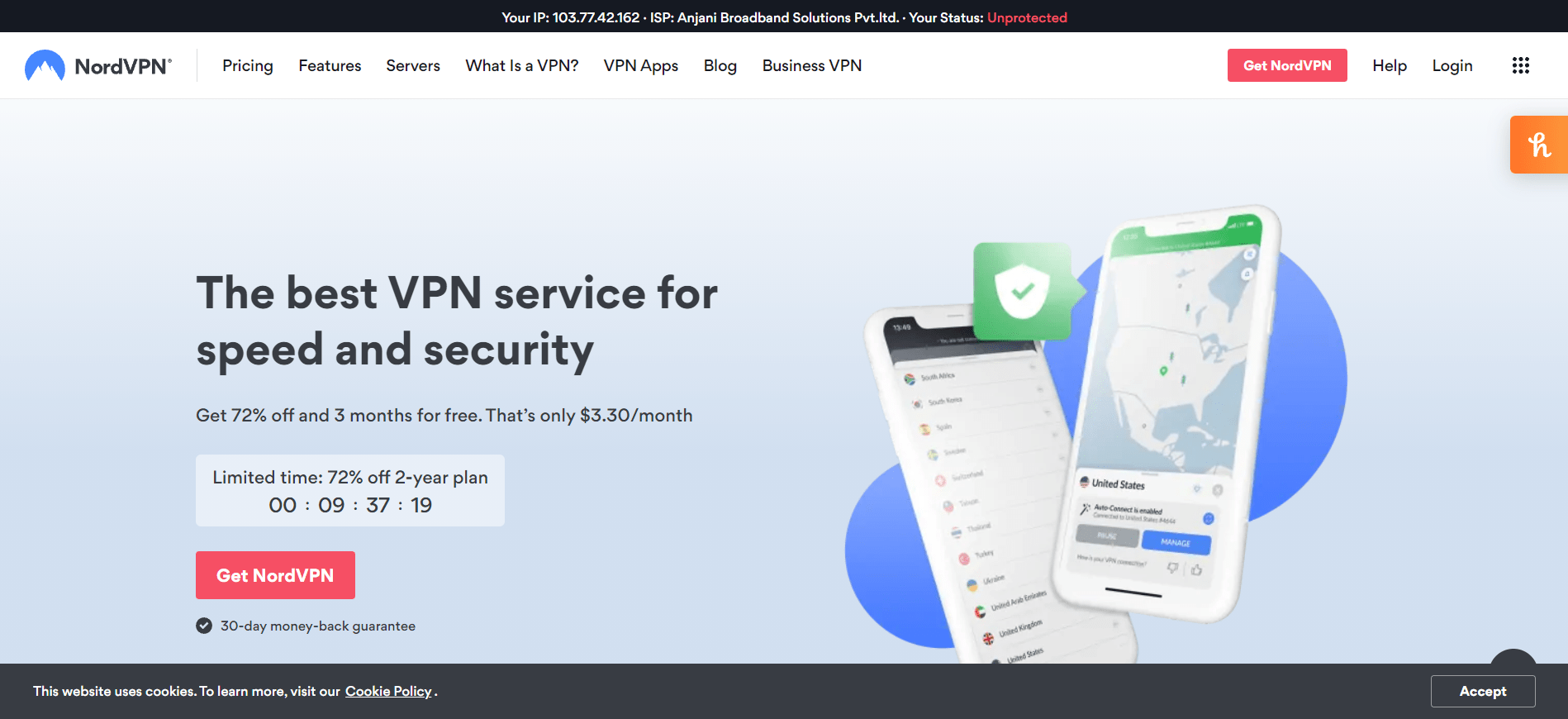
Before you install NordVPN on any device, you need an active subscription. Here’s how to get set up in under five minutes.
- Go to nordvpn.com and click Get NordVPN. You’ll see three plans: Basic, Complete, and Prime. Basic covers the full VPN. Complete adds Threat Protection Pro, NordPass, and 1 TB of cloud storage. Prime adds identity theft insurance (US only). The 2-year plan starts from around $3.49/month — check the live pricing page for the current rate, as promotional prices change frequently.
- Pick a plan and click Continue. You’ll be prompted to enter your email address. This becomes your NordVPN account login.
- Choose a payment method. NordVPN accepts Visa, MasterCard, American Express, PayPal, Google Pay, Apple Pay, and cryptocurrency. If privacy matters, paying with Bitcoin or Monero removes the identity-to-payment link.
- Check your inbox for a verification email from NordVPN. Click the link to verify your address and activate your account.
- Access your Nord Account at my.nordaccount.com. This dashboard shows all your active subscriptions, connected devices, and download links. Bookmark it — you’ll return here to manage your account.
Tip: NordVPN offers a 30-day money-back guarantee on all plans. A 7-day free trial is also available on Android via Google Play (one per customer). If you’re not sure yet, start with the trial before committing.
Once your account is active, you’re ready to install on any device. Head to the section below that matches your platform.
Install NordVPN on Windows 10 & 11
NordVPN has a native Windows app that works on Windows 10 and Windows 11. Installation takes about two minutes. You have two options: download NordVPN from the NordVPN website or install via the Microsoft Store.
Option A: Install from nordvpn.com (Recommended)
- Open your browser and go to nordvpn.com/download. Click Download NordVPN under the Windows section. This downloads a file called NordVPNSetup.exe.
- Once the download finishes, open your Downloads folder and double-click NordVPNSetup.exe.
- Windows will show a User Account Control prompt asking if you want to allow the app to make changes to your device. Click Yes.
- The installer will run automatically. It creates a desktop shortcut and a Start menu entry by default. NordVPN launches automatically once installation completes.
- Click Sign In and enter your NordVPN account email and password.
- Once logged in, click Quick Connect. NordVPN picks the fastest server automatically and connects within seconds. You’ll see a green shield icon in your taskbar confirming the connection is active.
Protocol note: NordVPN selects NordLynx by default on Windows — a custom WireGuard-based protocol that delivers the fastest speeds. If you’re on a restrictive network (like a hotel or workplace), switch to OpenVPN (TCP) or the new NordWhisper protocol in Settings → VPN Protocol. NordWhisper is specifically built for bypassing VPN blocks.
Option B: Install from Microsoft Store
- Open the Microsoft Store from the Start menu.
- Search for NordVPN and click Install.
- Once installed, open the app and sign in with your NordVPN credentials.
Both installation methods deliver the same app. The website version is often slightly more up to date, so it’s the preferred choice.
Windows-exclusive features: Split tunneling (choose which apps use the VPN and which don’t), Threat Protection Pro, App Kill Switch, and the full Meshnet feature are all available on Windows. These are not available on all platforms — Windows offers the most complete NordVPN experience.
How to Install NordVPN on Mac
NordVPN supports macOS 12 Monterey and newer. As with Windows, you can install either from the website or the Mac App Store.
Option A: Install from nordvpn.com (Recommended for Full Features)
- Go to nordvpn.com/download and click Download NordVPN under the macOS section. This downloads a .dmg file.
- Open the .dmg file and drag the NordVPN icon into your Applications folder.
- Open Applications and double-click NordVPN. macOS may show a security prompt — click Open to confirm.
- Sign in with your NordVPN email and password.
- macOS will ask for permission to add a VPN configuration. Click Allow. You may need to enter your Mac login password to approve this.
- Click Quick Connect to connect to the nearest fast server.
Option B: Install from Mac App Store
- Open the Mac App Store and search for NordVPN.
- Click Get then Install. You may need to enter your Apple ID password.
- Once installed, open NordVPN from your Applications folder and sign in.
Important for Mac users: The Mac App Store version includes Threat Protection Lite (basic ad and tracker blocking). The direct download from nordvpn.com includes Threat Protection Pro — the full antivirus and anti-phishing layer. If you have a Complete or Prime plan, download from the website to get the full feature set. Split tunneling is not available on macOS (Windows and Android only).
Install NordVPN on iPhone & iPad (iOS Setup)
NordVPN requires iOS 16.0 or later on iPhone and iPadOS 16.0 or later on iPad. Installation is straightforward through the App Store. If you want to compare the top mobile VPN options before committing, see our best mobile VPN apps guide.
- Open the App Store on your iPhone or iPad.
- Tap the Search tab and type NordVPN. Tap the official NordVPN app (blue shield logo).
- Tap Get then confirm with Face ID, Touch ID, or your Apple ID password. The app downloads and installs automatically.
- Open NordVPN from your home screen. Tap Sign In and enter your account email and password. Alternatively, tap Log in with Nord Account if you want to authenticate via a browser link.
- NordVPN will ask for permission to add a VPN configuration to your iPhone. Tap Allow. You’ll see a VPN icon appear in your status bar when connected.
- Tap Quick Connect to connect instantly, or scroll the country list to pick a specific server location.
iOS-only notes:
— 7-day free trial: Available on iOS via the App Store (one trial per Apple ID). This is a great way to test NordVPN before committing.
— Split tunneling: Not available on iOS due to Apple’s system restrictions. All traffic goes through the VPN when connected.
— Auto-connect: You can set NordVPN to connect automatically when you join an untrusted Wi-Fi network. Go to Settings → Auto-connect inside the app.
— NordLynx is used by default and offers the best speeds. OpenVPN (TCP/UDP) is also available for restricted networks.
How to Install NordVPN on Android
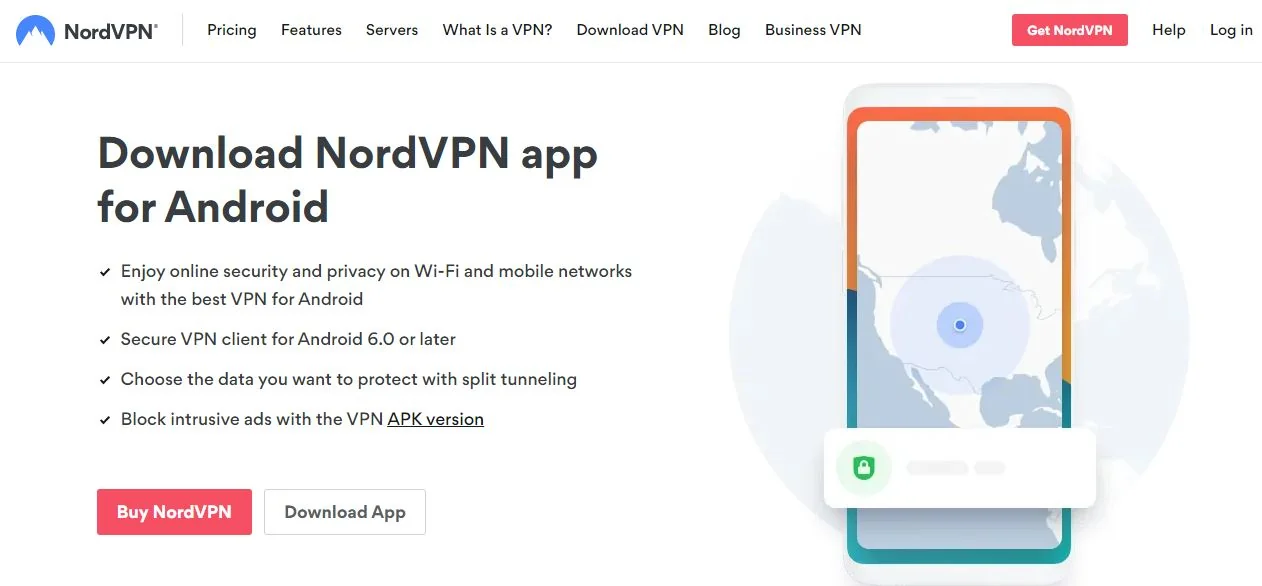
NordVPN supports Android 8.0 and above. The Android app is one of the most feature-complete versions NordVPN offers — including split tunneling, which isn’t available on iOS or macOS.
Install via Google Play Store
- Open the Google Play Store on your Android phone or tablet.
- Search for NordVPN and tap the official result (blue shield logo, by Nord Security).
- Tap Install. The app downloads and installs in under a minute.
- Open NordVPN and tap Sign In. Enter your account credentials. If you’re new, you can also sign up here.
- NordVPN will request permission to set up a VPN connection. Tap OK to allow this.
- Tap Quick Connect to connect to the fastest available server. The key icon in your status bar confirms the VPN is active.
Android-exclusive features:
— 7-day free trial available via Google Play (separate from iOS trial; one per Google account).
— Split tunneling is available — go to Settings → Split tunneling to choose which apps bypass the VPN and which apps use it. Useful if you want your banking app to use your real IP while everything else goes through NordVPN.
— The Android app is ioXt-certified for mobile security.
APK Sideload Option (for non-Play Store devices)
If your Android device doesn’t have access to the Google Play Store (some tablets, TV boxes, or devices from certain regions), you can install NordVPN via APK sideloading. Go to nordvpn.com/download, scroll to the Android section, and download the APK file directly. You’ll need to enable Install from unknown sources in your device’s security settings before the APK will install. This method gives you the same full app — no functionality is removed.
How to Install NordVPN on Linux
NordVPN added a full graphical user interface (GUI) for Linux in 2026 — a major upgrade over the CLI-only approach that previously required terminal commands for every action. Both the GUI and CLI are still supported.
Supported distributions include Debian, Ubuntu, Linux Mint, Elementary OS, and RPM-based systems (Fedora, CentOS, RHEL, openSUSE).
Install on Debian / Ubuntu / Linux Mint (apt-based)
- Open a Terminal window.
- Add the NordVPN repository by running the installation script. Go to nordvpn.com/download → Linux → and follow the instructions to add the NordVPN apt repository and import the signing key. NordVPN’s official support page at support.nordvpn.com has the exact current commands — always use the official source to get the right version.
- Run
sudo apt updateto refresh your package list. - Run
sudo apt install nordvpnto install the package. - To launch the GUI, open NordVPN from your application menu (on distributions with a desktop environment). To use the CLI, open a terminal.
- Log in with your Nord Account credentials using either the GUI or by typing
nordvpn loginin the terminal and following the browser-based authentication flow. - Connect with
nordvpn connectfor the fastest server, ornordvpn connect USto connect to a US server. To disconnect, runnordvpn disconnect.
Install on Fedora / CentOS / RHEL (rpm-based)
- Go to nordvpn.com/download → Linux → and select the RPM package option.
- Download the .rpm installer file.
- Install using
sudo dnf install nordvpn-[version].rpm(adjust the filename to match the downloaded file). - Log in and connect as described above.
Useful CLI Commands
Key nordvpn CLI commands:
nordvpn connect— Connect to the fastest available servernordvpn connect [country]— Connect to a server in a specific country (e.g.,nordvpn connect Germany)nordvpn disconnect— Disconnect from the current servernordvpn status— Show your current connection status and IPnordvpn set technology nordlynx— Switch to the NordLynx protocol (fastest)nordvpn set technology openvpn— Switch to OpenVPNnordvpn set killswitch on— Enable the kill switch (blocks internet if VPN drops)nordvpn set autoconnect on— Connect automatically at loginnordvpn settings— View all current settings
Linux limitations: Split tunneling is not available on Linux. All traffic goes through the VPN when connected. The Threat Protection Pro feature is also not available on Linux at this time.
How to Install the NordVPN Browser Extension
NordVPN offers extensions for Chrome, Firefox, and Microsoft Edge. These are available in each browser’s respective extension store and take under a minute to install.
Chrome
- Open Chrome and go to the Chrome Web Store.
- Search for NordVPN and click on the official extension (by Nord Security).
- Click Add to Chrome then Add extension to confirm.
- The NordVPN icon appears in your Chrome toolbar. Click it and sign in.
Firefox
- Open Firefox and go to addons.mozilla.org.
- Search for NordVPN and click Add to Firefox.
- Click Add at the permission prompt. Sign in once installed.
Microsoft Edge
- Open Edge and go to the Microsoft Edge Add-ons store.
- Search for NordVPN and click Get then Add extension.
- Sign in once the extension is active.
Critical distinction — extension vs. full app: The NordVPN browser extension is a proxy, not a full VPN. It only protects traffic inside the browser window. Other apps on your device — email clients, torrent apps, streaming software — remain unprotected. For full device-level protection with AES-256 encryption, you must install the desktop app (Windows or Mac). The extension is useful as a lightweight tool for browser-only geo-unblocking or quick location switches, but it should not replace the full app for privacy-sensitive tasks.
NordVPN Fire Stick & Fire TV: Full Setup Guide
NordVPN has a native app for Amazon Fire Stick and Fire TV — no sideloading required. This is one of the cleanest TV installations NordVPN offers.
- On your Fire Stick or Fire TV, go to the Home screen and select Find → Search.
- Type NordVPN using the on-screen keyboard or voice search.
- Select NordVPN from the search results and click Get (or Download).
- Wait for the download and installation to complete, then click Open.
- You have two options at the login screen:
- Scan QR code — scan with your phone camera to open the Nord Account login page on your mobile browser. Faster and easier than typing.
- Enter credentials manually — type your email and password using the Fire TV remote.
- After logging in, NordVPN may ask you to approve a VPN connection. Select OK or I trust this application when prompted.
- Tap Quick Connect to connect, or browse the server list to pick a country. NordVPN will now encrypt all traffic from your Fire device.
Why use NordVPN on Fire Stick? NordVPN unlocks 15+ Netflix regional libraries, Disney+, BBC iPlayer, Hulu, Max, ESPN+, and Amazon Prime Video. Once connected to a US server, Fire Stick apps that show regional restrictions will open as if you’re in that country. NordVPN’s SmartPlay feature handles the unblocking automatically — no extra configuration needed.
How to Install NordVPN on Android TV & Google TV
Most Android-based smart TVs (including Sony Bravia, Philips Android TV, and TCL Android TV) and Google TV devices (Chromecast with Google TV, some Sony models) support native VPN apps via Google Play.
Install via Google Play on Android TV / Google TV
- On your Android TV or Google TV, open the Google Play Store from the home screen or app drawer.
- Search for NordVPN using the remote or a linked phone.
- Select the official NordVPN app and click Install.
- Once installed, open NordVPN and sign in with your Nord Account credentials.
- Approve the VPN configuration request that appears on screen.
- Click Quick Connect or choose a specific server to start protecting your TV traffic.
No Google Play on your Android TV? Some Android TV boxes and older smart TVs run Android without Google Play pre-installed. In that case, use APK sideloading: enable Unknown sources in your TV’s security settings, download the NordVPN APK from nordvpn.com/download via a USB stick or file manager app, then install directly. Alternatively, the SmartDNS method (covered in the Smart TV section below) works on any TV with a network settings menu, no app required.
How to Install NordVPN on Apple TV
NordVPN launched a native tvOS app for Apple TV, available through the App Store. This is the easiest and most secure method — you get full VPN encryption rather than just DNS-based unblocking.
Method 1: Native App (Recommended)
- On your Apple TV (4th generation or later running tvOS 17+), open the App Store.
- Search for NordVPN and select the official app.
- Click Get to download and install.
- Open NordVPN and sign in with your Nord Account. You can use the Apple TV remote or open a QR code link on your phone for faster login.
- Approve the VPN configuration request.
- Click Quick Connect — Apple TV traffic is now fully encrypted and routed through NordVPN’s servers.
App vs. SmartDNS on Apple TV: The native app provides full VPN encryption — your ISP can’t see what you’re watching, and your IP is masked. SmartDNS (covered below) only changes your DNS server to bypass geo-blocks; it doesn’t encrypt traffic. For Netflix geo-unblocking where you just want speed, SmartDNS works fine. For privacy on public or shared networks, use the full VPN app.
Method 2: SmartDNS Setup on Apple TV
If you want streaming access without installing the app, NordVPN’s SmartDNS service changes your apparent location through DNS alone. Follow these steps:
- Log in at my.nordaccount.com → Services → NordVPN → SmartDNS tab → click Enable then Activate SmartDNS. Activation can take up to 10 minutes.
- On your Apple TV, go to Settings → Network → Wi-Fi and select your network.
- Tap Configure DNS and switch from Automatic to Manual.
- Enter the NordVPN SmartDNS addresses. The current DNS values are listed in your Nord Account dashboard and at support.nordvpn.com (they can change, so always use the latest values from the official source).
- Restart your Apple TV and open your streaming app. Geo-restricted content should now be accessible.
How to Install NordVPN on Smart TV (Samsung & LG)
Samsung TVs run Tizen OS and LG TVs run webOS. Neither supports VPN apps natively. The best approaches are SmartDNS (easiest) or the router method (most complete).
SmartDNS Setup — Works on Samsung and LG
First, enable SmartDNS in your Nord Account (follow step 1 from the Apple TV SmartDNS section above). Make sure your smart TV is on the same Wi-Fi network as the device you used to activate SmartDNS. Then:
Samsung Smart TV — DNS Setup
- Press the Menu button on your Samsung remote. Navigate to Network → Network Status.
- Wait for the TV to check your connection, then select IP Settings.
- Click DNS Setting → Enter Manually.
- Enter NordVPN’s primary SmartDNS address (get the current address from your Nord Account dashboard).
- Select OK. The TV re-checks the connection. If successful, you’ll see a confirmation message.
- Click Close. Open Netflix or another streaming app — geo-restricted content should now load from the region NordVPN’s SmartDNS routes you to.
LG Smart TV — DNS Setup
- Press the Settings button on your LG remote. Go to Network → Wi-Fi Connection.
- Confirm your LG TV is connected to the same network you used to activate SmartDNS.
- Select Advanced Wi-Fi Settings. Turn off IPv6, then scroll down and click Edit.
- Disable Set Automatically and enter NordVPN’s SmartDNS primary address in the DNS Server field.
- Press Connect. The TV will apply the new settings.
SmartDNS limitation: SmartDNS bypasses geo-restrictions but does not encrypt your traffic. Your ISP can still see what you’re watching. For full privacy on your smart TV, use the router method instead — it applies full VPN encryption to every device on your home network, including your TV.
How to Install NordVPN on a Router
Installing NordVPN on your router is the most powerful option. Every device that connects to your home Wi-Fi — smart TVs, game consoles, IoT devices, guest devices — gets VPN protection automatically. No individual app installs needed.
Setup time is approximately 10 minutes once you have your router’s admin panel open.
Option 1: FlashRouters (Easiest)
NordVPN is partnered with FlashRouters, which sells routers pre-configured with NordVPN. If you buy from FlashRouters, the VPN is already set up — just plug in the router and connect. No manual configuration required. This is the best choice if you’re not comfortable with networking.
Option 2: Manual OpenVPN Setup (ASUS, DD-WRT, Tomato)
If your existing router supports OpenVPN — common on ASUS routers running stock firmware and routers running DD-WRT or Tomato firmware — you can configure NordVPN manually. The broad steps are:
- Log in to your router’s admin panel (typically at 192.168.1.1 or 192.168.0.1 in your browser).
- Find the VPN section (usually under Advanced Settings or WAN).
- Download the NordVPN OpenVPN configuration files from nordvpn.com/servers — filter by country and protocol (UDP for speed, TCP for stability), and download the .ovpn file for your chosen server.
- In your router’s VPN settings, import the .ovpn configuration file.
- Enter your NordVPN service credentials (not your login email/password — find these in your Nord Account under Services → NordVPN → Manual setup). These are separate credentials specifically for OpenVPN/manual configurations.
- Save the settings and enable the VPN connection. Your router will connect to NordVPN’s server.
NordVPN maintains detailed step-by-step guides with screenshots for over a dozen router models at support.nordvpn.com. If your specific router model isn’t on that list, it may not support VPN client mode.
Option 3: NordLynx on Supported Routers
Some newer routers and firmware versions (particularly on ASUS and certain DD-WRT builds) support WireGuard natively, which means you can configure NordLynx for better speeds than OpenVPN. Check NordVPN’s router support documentation for your specific model.
Router VPN limitations: Split tunneling is not available when running NordVPN at the router level — all connected devices go through the VPN. Also, each router connection counts as one device slot (out of your 10 allowed simultaneous connections). One router installation covers all devices on that network without using additional slots.
How to Install NordVPN on PlayStation, Xbox & Nintendo Switch
PlayStation, Xbox, and Nintendo Switch don’t support VPN apps natively. You have two options: SmartDNS (for streaming only) or the router method (for full VPN protection).
SmartDNS Method (PlayStation, Xbox, Switch)
First, enable SmartDNS in your Nord Account as described in the Apple TV section. Then configure DNS manually on each console:
PlayStation (PS4 / PS5)
- Go to Settings → Network → Set Up Internet Connection.
- Choose Wi-Fi or LAN Cable depending on your setup, then select Custom.
- Keep the default settings for IP Address, Subnet Mask, and Default Router, but on the DNS Settings screen, select Manual.
- Enter NordVPN’s primary SmartDNS address as the Primary DNS, and the secondary address as the Secondary DNS. Find current values in your Nord Account dashboard.
- Select Automatic for MTU and Do Not Use for Proxy Server. Click Test Internet Connection to verify.
Xbox (Xbox One / Xbox Series X|S)
- Press the Xbox button to open the guide. Go to Profile & system → Settings → General → Network settings.
- Select Advanced settings → DNS settings → Manual.
- Enter NordVPN’s SmartDNS primary and secondary DNS addresses.
- Press B to save. Select Test network connection to confirm everything works.
Nintendo Switch
- Go to System Settings → Internet → Internet Settings.
- Select your Wi-Fi network and tap Change Settings.
- Scroll to DNS Settings and change from Automatic to Manual.
- Enter NordVPN’s primary and secondary SmartDNS addresses.
- Save and run a connection test.
Router method for consoles: If you set up NordVPN on your home router (covered in the previous section), your consoles will automatically receive VPN protection without any DNS changes. This is the easiest long-term solution if you want the full encryption benefit rather than just SmartDNS geo-unblocking.
Troubleshooting NordVPN Installation Issues
Most installation problems have straightforward fixes. Here are the most common issues and what to do about them.
“Access Denied” or Login Error
Double-check that you’re using your Nord Account credentials (the email and password you used to sign up at nordvpn.com). If you signed up via Apple Sign-In or Google Sign-In, your password may be different from what you expect. Try resetting your password at nordvpn.com → Login → Forgot password. Also confirm your subscription is active at my.nordaccount.com.
VPN Configuration Error on iOS / macOS
If iOS says it can’t add a VPN configuration, go to Settings → General → VPN & Device Management and check if a previous NordVPN profile is blocking the new one. Delete any old VPN profiles, then try adding the new one from within the NordVPN app again. On macOS, make sure you’re approving the VPN request in System Preferences → Network.
Linux Installation Fails or Command Not Found
This usually means the NordVPN repository wasn’t added correctly, or you’re running a distribution variant that requires a different install method. Run nordvpn --version to check if the package installed. If the command isn’t found, revisit support.nordvpn.com for the exact install script matching your distro and version. On some systems, you may need to add your user to the nordvpn group: sudo usermod -aG nordvpn $USER, then log out and back in.
Browser Extension Greyed Out or Not Connecting
The NordVPN browser extension requires the full desktop app to be installed and running on the same computer. The extension proxies through the desktop app’s connection — it can’t work independently. Install the Windows or Mac app, launch it, sign in, and then the extension should activate.
SmartDNS Not Working on TV or Console
SmartDNS requires your device’s IP address to be whitelisted. Make sure you activated SmartDNS while connected to the same network as your TV or console. If you switched networks (e.g., your laptop went to a different Wi-Fi and you activated SmartDNS there), log back into Nord Account and re-activate SmartDNS while connected to the correct network. Also note: SmartDNS activation can take up to 10 minutes to propagate.
If none of these fixes resolve your issue, NordVPN offers 24/7 live chat support at nordvpn.com. A human agent typically responds within 30 seconds after the initial chatbot screen.
How to Install NordVPN: Frequently Asked Questions
Is NordVPN free to install?
The NordVPN app is free to download on every platform. However, you need an active paid subscription to use the service. Plans start from around $3.49/month on the 2-year plan. A 7-day free trial is available on Android (Google Play) and iOS (App Store) — one per account. All paid plans include a 30-day money-back guarantee, so you can try it risk-free.
Is there a free version of NordVPN?
NordVPN does not offer a permanent free tier. The 7-day mobile trial and 30-day money-back guarantee are the closest equivalents. If you need a permanently free VPN, that’s a different category of product — free VPNs typically have data caps, slower speeds, fewer servers, and weaker privacy practices. NordVPN’s paid plans are among the most affordable in the premium segment (under $4/month on 2-year billing).
How do I get the 7-day free trial?
Download NordVPN from the Google Play Store (Android) or the App Store (iOS). During the account creation or upgrade flow inside the app, you’ll see an option to start a free trial. The trial gives you full access to NordVPN for 7 days with no charge. One trial per Google account or Apple ID. If you don’t cancel before the trial ends, you’ll be charged for the selected plan.
How many devices can I install NordVPN on?
One NordVPN subscription covers 10 simultaneous connections. You can install the app on as many devices as you want — the 10-device limit applies to how many can be connected to NordVPN at the same time, not how many have the app installed. A router installation counts as one connection but protects all devices on that network.
Which protocol should I choose — NordLynx or OpenVPN?
For most users, NordLynx (the default) is the right choice. It’s based on WireGuard with NordVPN’s double-NAT layer and delivers the fastest speeds with strong security. Use OpenVPN TCP if you’re on a restrictive network that blocks standard VPN traffic (hotels, workplaces, some countries). The new NordWhisper protocol (2026) is purpose-built for highly restrictive environments where even obfuscated OpenVPN gets blocked.
Does NordVPN work on Chromebook?
Yes. NordVPN supports ChromeOS. You can install the Android app via Google Play on your Chromebook (most Chromebooks from 2017+ support Android apps). Alternatively, the Chrome browser extension is available in the Chrome Web Store. The Android app provides full VPN protection; the extension only covers browser traffic.
Does NordVPN have a Linux GUI now?
Yes — NordVPN released a full graphical interface for Linux in 2026. Previously, Linux users had to manage everything through the terminal. The GUI is available for distributions with a desktop environment (GNOME, KDE, etc.) and makes it much easier to switch servers, change protocols, and manage settings. The CLI is still supported for headless servers and power users who prefer terminal control.
How long does router installation take?
Manual OpenVPN configuration on a compatible router typically takes about 10 minutes once you have your router’s admin panel open and your NordVPN service credentials ready. Pre-configured routers from FlashRouters require zero setup — just plug in and connect. The most time-consuming part is downloading the correct configuration file for your target server from NordVPN’s server list page.
What is Meshnet and how do I set it up?
Meshnet is a NordVPN feature that creates an encrypted virtual network across up to 60 devices (10 of your own + 50 external). It’s useful for accessing files on a home computer remotely, setting up a secure LAN for gaming with friends, or running all your devices’ traffic through one machine. To enable it, open NordVPN on any supported device (Windows, Mac, Android, Linux), go to the Meshnet tab, turn it on, and invite other devices or users by email. It’s included in all NordVPN plans at no extra cost.
What’s the difference between SmartDNS and the full VPN app?
SmartDNS changes your DNS server to make it appear you’re in a different country — useful for unblocking streaming services on TVs and consoles that don’t support VPN apps. It does not encrypt your traffic. The full VPN app routes your traffic through an encrypted tunnel, hiding both your location and your activity from your ISP and anyone monitoring the network. For streaming geo-unblocking without privacy concerns, SmartDNS is faster and simpler. For privacy, security, or use on public Wi-Fi, always use the full VPN app.
Can I switch server locations after connecting?
Yes, you can switch servers at any time without disconnecting first. In the NordVPN app, just click on a new country or server — NordVPN will automatically disconnect from the current server and reconnect to the new one. The entire switch typically takes 2–5 seconds. You can also use the search bar in the app to find specific cities or server types (P2P, Obfuscated, Double VPN, etc.).
Does NordVPN work in China?
NordVPN can work in China, but results are inconsistent. China’s Great Firewall aggressively blocks VPN traffic. The Obfuscated Servers and the new NordWhisper protocol (2026) are designed to bypass these restrictions by disguising VPN traffic as regular HTTPS. Some users report success with these protocols; others find them unreliable depending on the region and current firewall conditions. If you need reliable access from China, download and configure NordVPN before you travel there — the website and app stores may be inaccessible once you’re inside the country.
Download NordVPN Now
One subscription, 10 devices, 9,532+ servers across 149 countries — and a 30-day money-back guarantee if it’s not right for you.
Download NordVPN Now →